How to Import Trades in Fyllodash
Step-by-step guide to import your trades from the risk calculator into your Fyllodash portfolio.
Create Your Portfolio
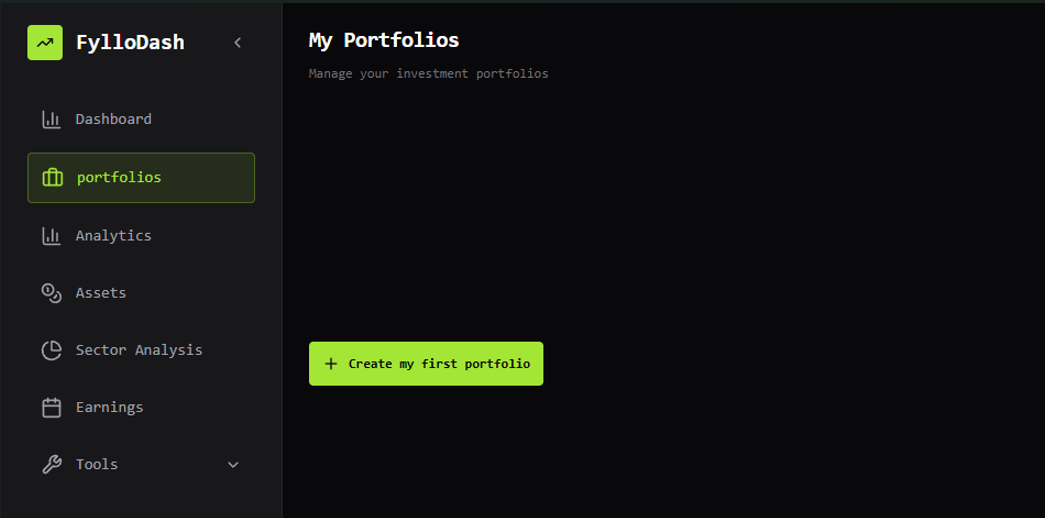
First, you need to create a portfolio in Fyllodash if you don't have one yet. Navigate to the portfolios section and click on "Create New Portfolio".
Use the Import Function
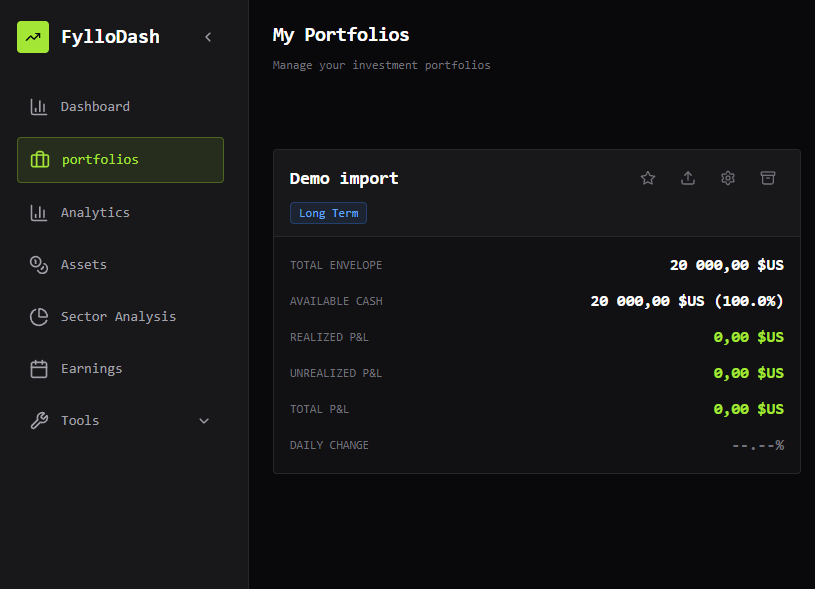
Once your portfolio is created, look for the "Import" button near the star. This will open the import dialog where you can paste your trade data.
Copy the Data
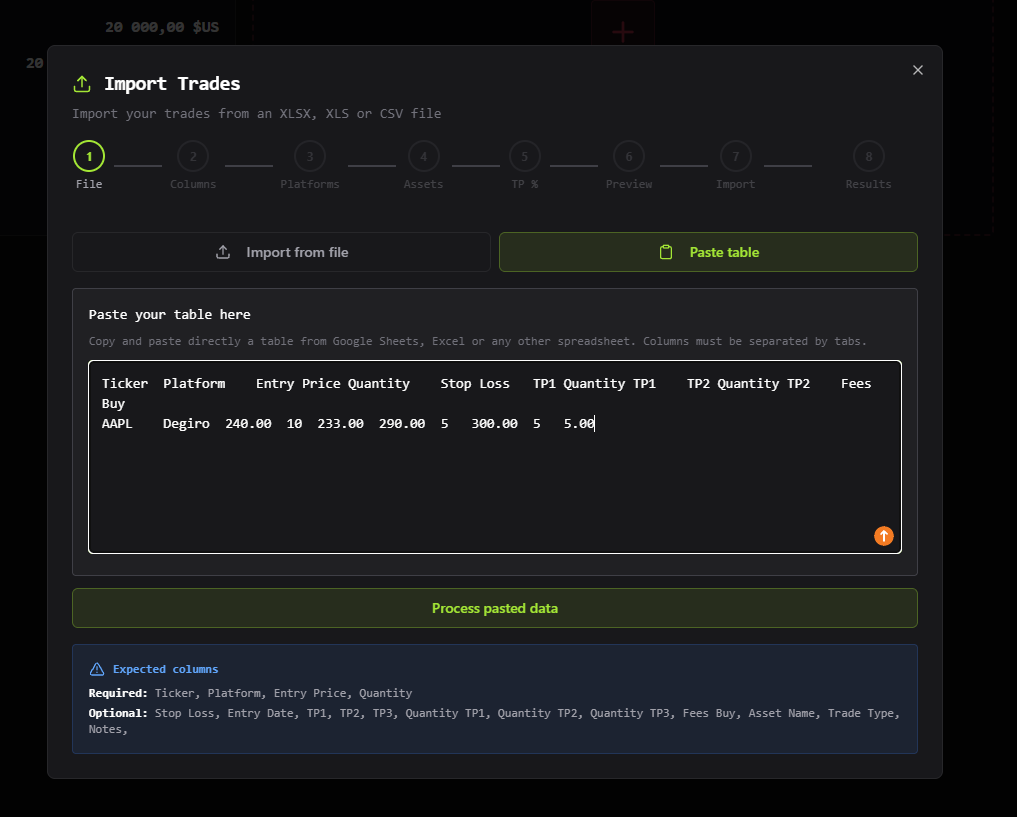
Paste the trade data from your clipboard or import Excel file. The data needs to include the following columns: Ticker, Platform, Entry Price, Quantity, Stop Loss, TP1, Quantity TP1 (optional), TP2, Quantity TP2 (optional), and Fees Buy (optional).
Map the Columns
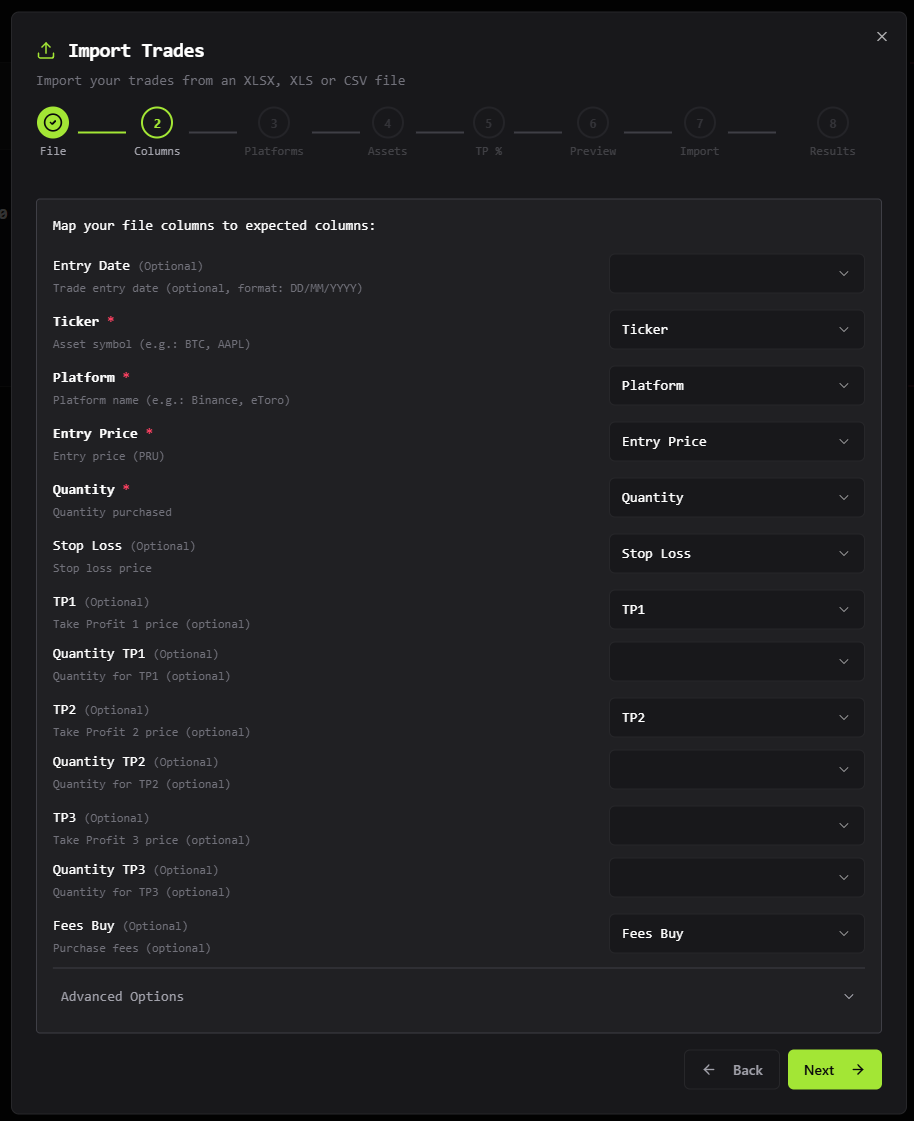
Fyllodash will automatically detect the columns, but you may need to map them to the correct fields. Match each column from your CSV to the corresponding field in Fyllodash:
- Ticker → Asset Symbol
- Platform → Trading Platform
- Entry Price → Entry Price
- Quantity → Quantity
- Stop Loss → Stop Loss
- TP1 → Take Profit 1
- Quantity TP1 → Quantity for TP1
- TP2 → Take Profit 2
- Quantity TP2 → Quantity for TP2
- Fees Buy → Buy Fees
Confirm Platforms and Assets
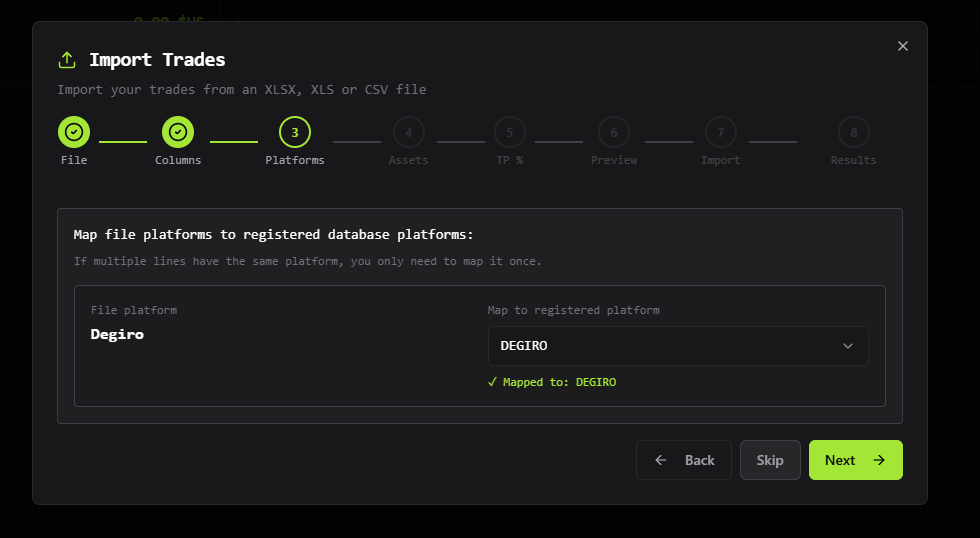
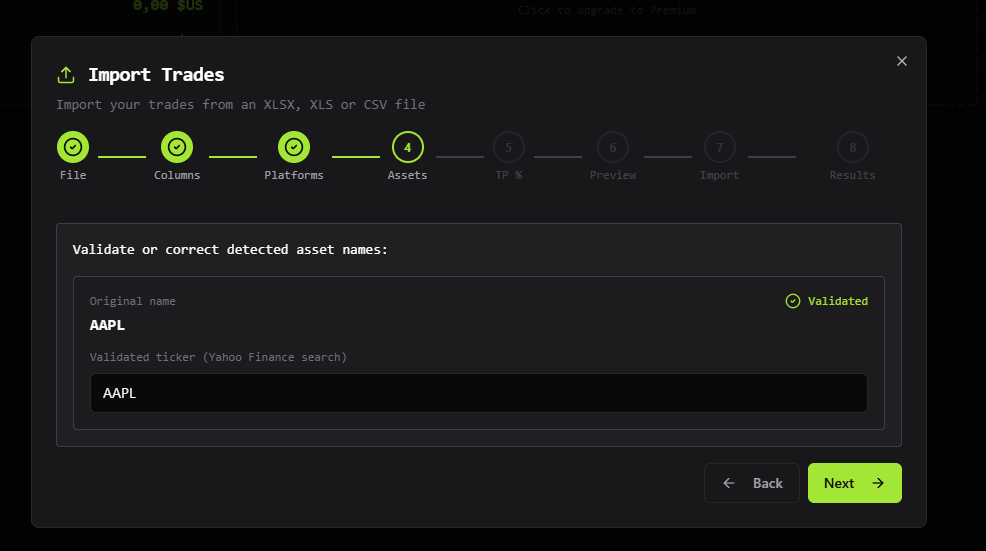
After mapping the columns, Fyllodash will ask you to confirm the platforms and assets. Make sure all the platforms and ticker symbols are correctly recognized. You can add new platforms or assets if they don't exist yet.
Choose Percentage for Each TP (Optional)
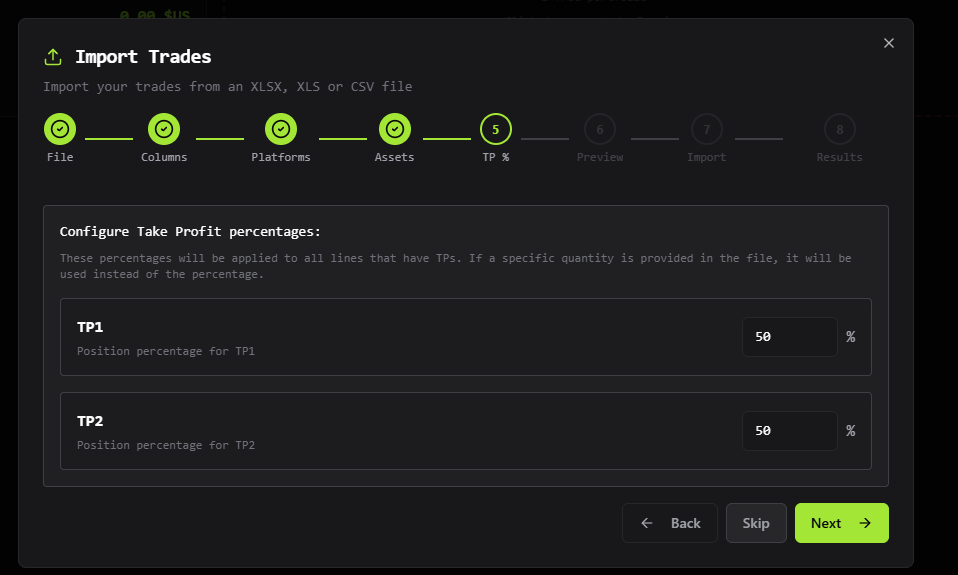
If you want to adjust the percentage allocation for each Take Profit level, you can do so in this step (this is optional). You can specify what percentage of your position should be sold at TP1 and TP2.
Validate the Import
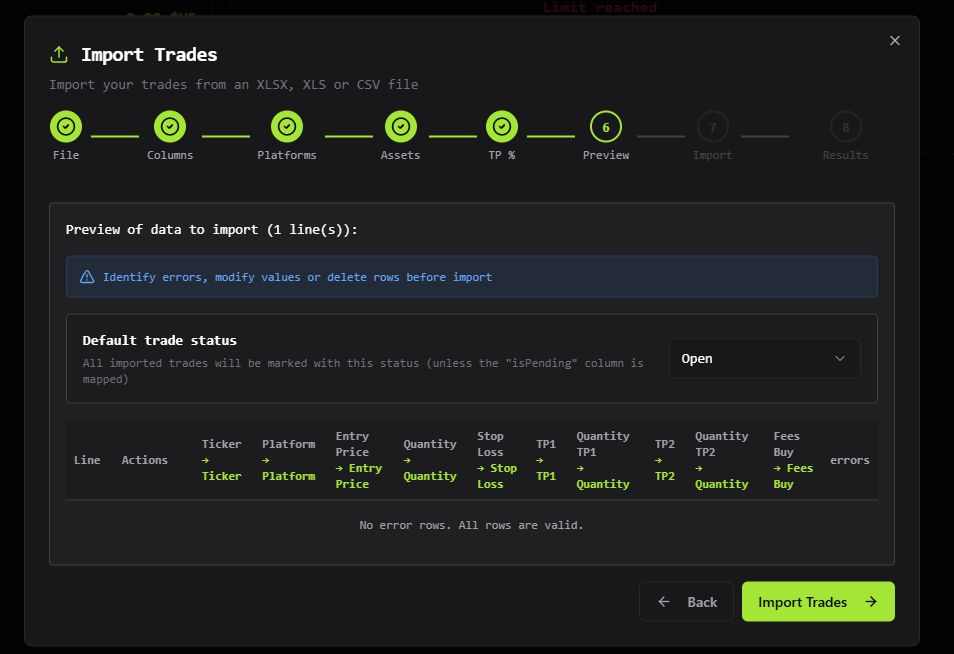
Review all the imported data one last time. Only trades that are not correctly formatted are displayed. Once you're satisfied, click "Validate" or "Confirm Import" to finalize the import. Your trades will now appear in your portfolio.
View Your Imported Trade
Congratulations! Your trade has been successfully imported. You can now see it in your portfolio with all the details: ticker symbol, entry price, quantity, stop loss, take profit levels, and fees. The trade is now ready to be tracked and monitored in Fyllodash.

You're All Set!
Your trades have been successfully imported into Fyllodash. You can now track your positions, monitor your risk, and analyze your performance all in one place.